Added
Date Extract and Swapper Group
Added the ability to extract a date and time using drag and drop from a prefix from a single filename / foldername and then use that date time to swap a date time using drag and drop to either add or swap the date time. The format of the output and input depends on the overloaded buttons nMB Click and nMB Drops.
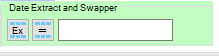
The Ex button extracts the date and time from the prefix and populates the editable text box visible via a drop event. Formats depend on nMB (nMB stands for LMB, MMB, RMB, or Left, Middle, Right, and MB stands for Mouse button).
e.g.
If the filename is “20251103 160736 Sent Message to LLM (Feature).txte” and is dropped on the Ex button with the LMB drop event, then the textbox would record “20251103 160736”
If the filename is “20251103 160736 Sent Message to LLM (Feature).txte” and is dropped on the Ex button with MMB drop event, then the textbox would record “20251103”
If the filename is “20251103 160736 Sent Message to LLM (Feature).txte” and is dropped on the Ex button with MMB drop event, then the textbox would record “20251103 1607”
=== Extract Date Time from Name ===
LMB Drop Drop a file and extract dt
RMB Drop Drop a file and extract d
MMB Drop Drop a file and extract d hhmm
Reformat the textbox to
LMB Click Reformat to yyyyMMdd hhmmss
RMB Click Reformat to yyyyMMdd hhmm
MMB Click Reformat to yyyyMMdd
Note will fill with zeros if nothing is present
and will fill with today’s date if empty
The = button
=== Swaps Date Time from with Filename/Foldername ===
LMB Drop Drop a file and swap dt
RMB Drop Drop a file and swap d
MMB Drop Drop a file and swap d hhmm
(To clipboard)
LMB Click dt yyyyMMdd hhmmss
RMB Click d yyyyMMdd
MMB Click dt yyyyMMdd hhmm
Note textbox must be initialized first for this to work
Modified
Clock Button
Current functionality

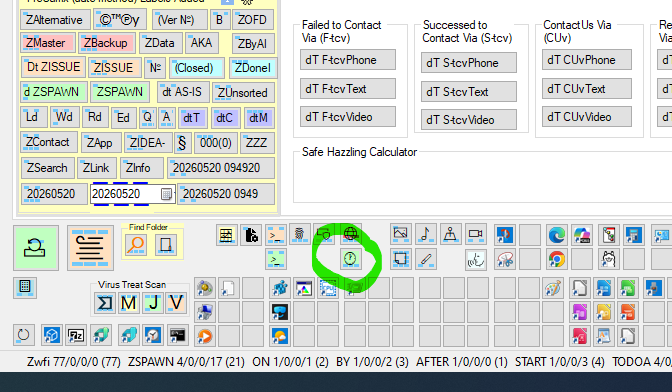
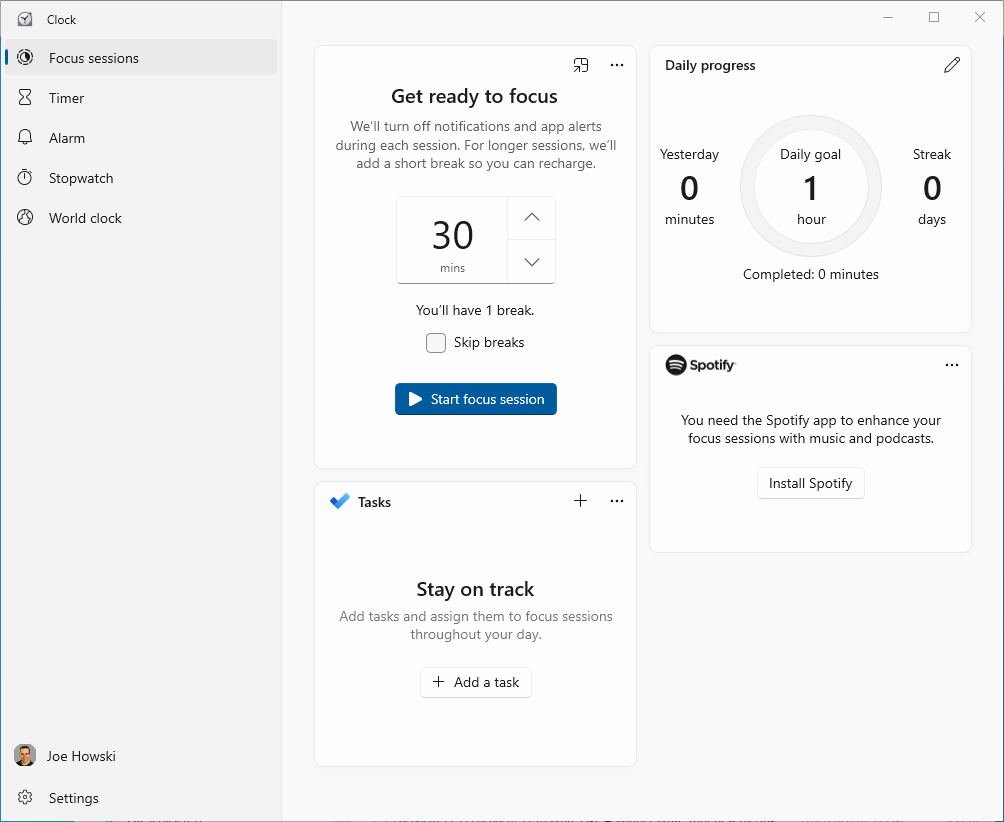
=== Clock ===
LMB Click MS Clock in Focus Mode
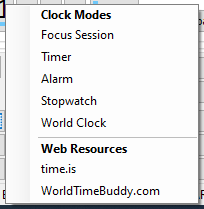
RMB Click shows a pop-up menu with Clock modes
(Focus Session, Timer, Stopwatch,
Alarms, World Clock) and
web resources (time.is, WorldTimeBuddy.com)
MMB Click MS Clock Last mode
Clock Modes Available:
- Focus Session Pomodoro-style focus timer
- Timer Countdown timer
- Stopwatch Stopwatch functionality
- Alarms Alarm management
- World Clock Multiple timezone clocks
Web Resources:
- time.is Precise current time and time zone information
- WorldTimeBuddy Time zone converter and meeting planner
In a recent Windows Clock update, the developer modified the Alt key sequences, so the Clock button menu no longer worked correctly. The changes to the Alt sequences actually improved the reliability of the Ammenster Clock button when selecting the menu option.
Demo Mode
- Demo mode is reset at every restart of Ammenster.
- Demo must now be chosen from the welcome window at startup.
Welcome screen and License Status
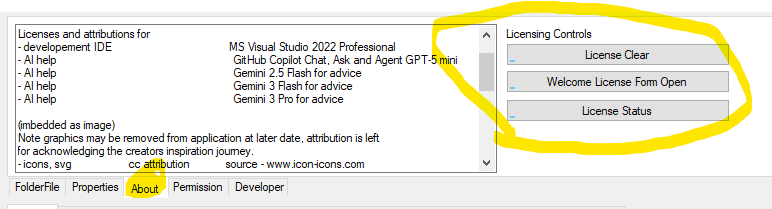
- Clear the license code from Ammenster in the About Tab
- Reworked the button ‘Welcome License Form Open button
- Fixed the Close Button on the Welcome Screen, which was not working properly.
- Fixed the Welcome screen reopening after closing the Welcome Screen.
- Removed automatic closing of the welcome screen after startup.
Leave a Reply